How it works

From your video to an experience anyone can watch.

A film, a place seen from several angles, or anything else. MV Experience turns it into one file you can share, and a session anyone can follow.

The story in ten beats

  1. Share your immersive experiences

    A film, a place from several angles, or anything else.

  2. One encrypted file

    For your partners, or straight to your viewers.

  3. Always signed by you

    A password and an expiration date, if you want.

  4. Easy for every viewer

    Even for someone new to Apple Vision Pro.

  5. Guide the viewer

    From an iPhone, iPad or Mac, no Wi-Fi network needed.

  6. Demo after demo

    At home or at a show, the session restarts by itself.

  7. Drop in your video

    Apple Immersive Video, spatial, 180° or 360°.

  8. Apple Intelligence, or you

    Your experience, ready in a few minutes.

  9. Videos and collections

    Each one becomes an experience.

  10. Already in your Library

    Your experiences, ready to share and to watch.
Three words

Video. Collection. Experience.

  • Video

    Your immersive video and its presentation: a picture, a title, a subtitle, a description. Like a film’s page in a streaming app.

  • Collection

    Several videos, played in order or chosen by the viewer. A place from eight viewpoints. A program in three steps.

  • Experience

    What a video or a collection becomes. One file to share, one card in your Library.

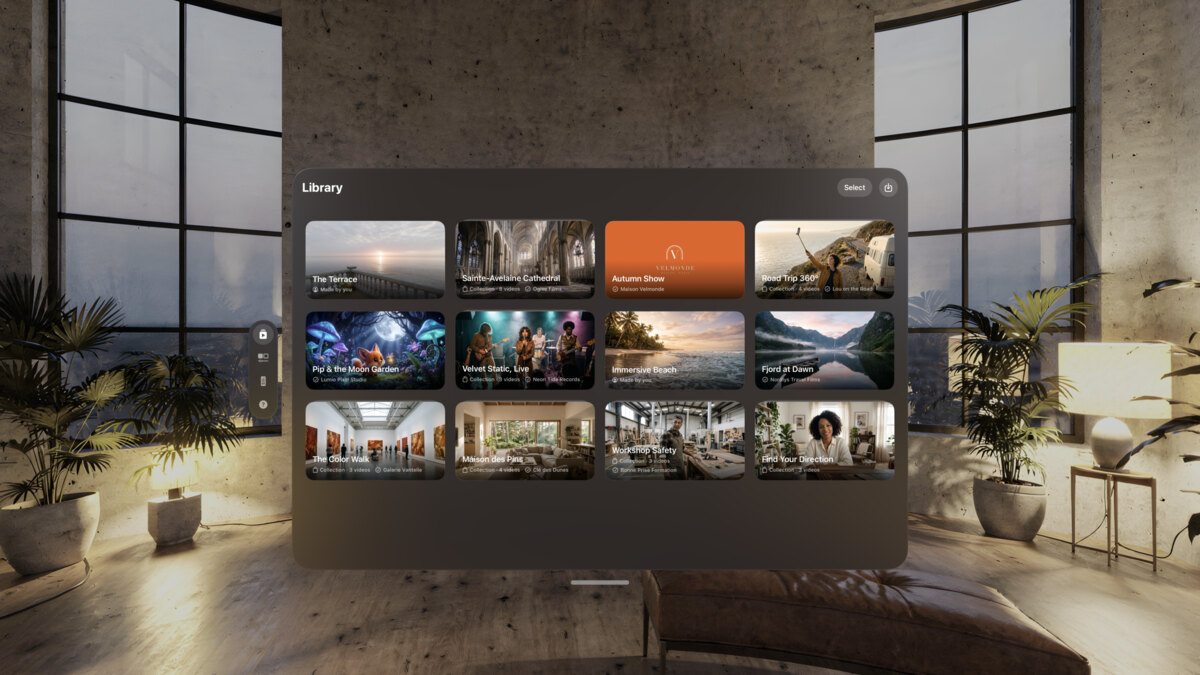
Your Library keeps the experiences you make and the ones you receive.

The Library on Apple Vision Pro, with the twelve example experiences as cards.

One file

If you can send a PDF, you can send an experience.

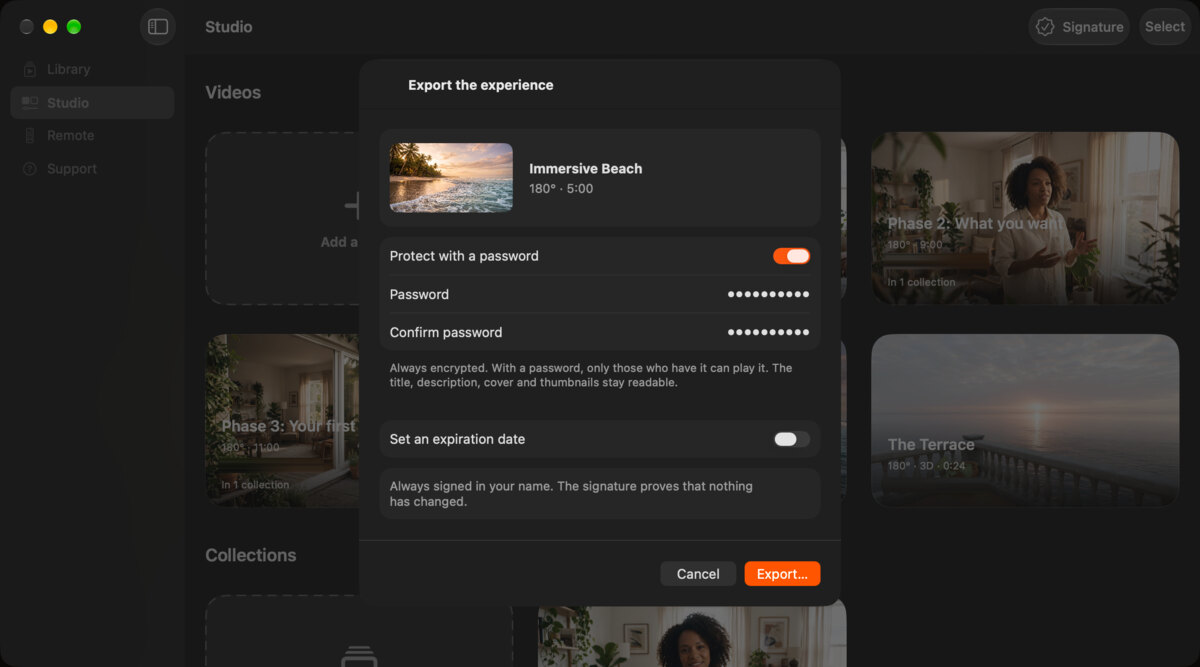
An experience is one .mvexperience file: your videos, a picture and a description. Each video has its own page. Write only what you want. Share it by AirDrop, by email, from your website, or on a platform that sells digital files. Whoever receives it opens it in MV Experience, for free.

  • Always encrypted.
  • With a password, only people who have it can play it. Without one, anyone with MV Experience can.
  • An expiration date, if you want one.
  • Always signed with your name. The signature proves nothing changed since you signed it.
  • Your signature is already on your other devices, through iCloud.
The export sheet in the Studio on Mac for the experience Immersive Beach, with a password and an option to set an expiration date.

Signature

Signed with your name.

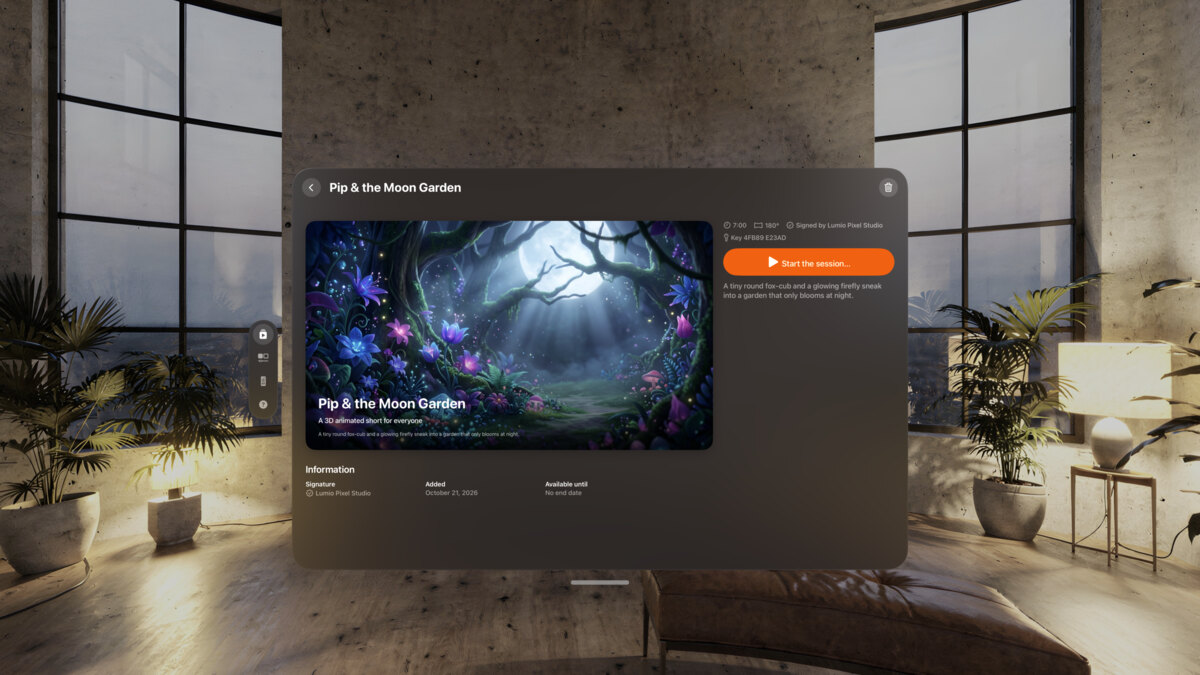
The first time you export, MV Experience asks for your name and creates your signature. Every file you export carries it. When someone opens the file, MV Experience shows who signed it and checks that nothing changed.

Your website can vouch for you. When your site lists your key, viewers see that the key belongs to your site. A website proves control of a domain, not who a person is.

A received experience on Apple Vision Pro, Pip & the Moon Garden, with its start button and the name of the studio that signed it.

The session

Hand it over. They take it from there.

  1. Pick an experience in your Library.

  2. Tap “Start the session”.

  3. Hand over Apple Vision Pro.

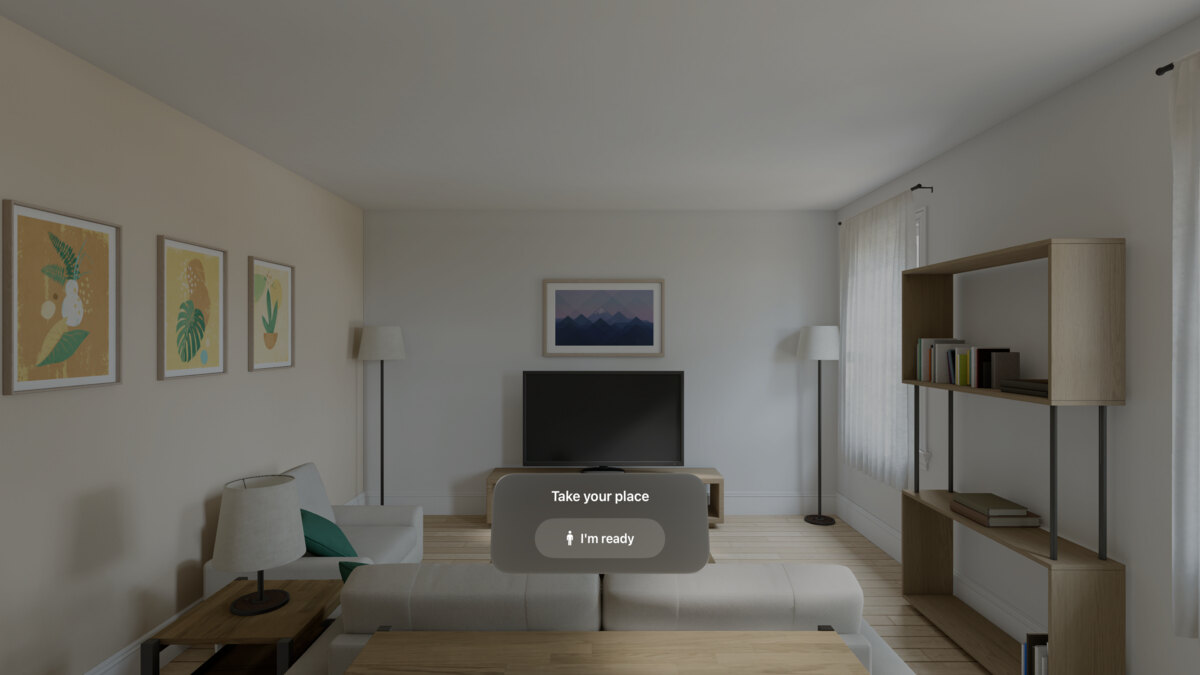
  4. A panel asks the viewer to take their place and tap “I’m ready”.

  5. The video choice appears. The viewer picks with a finger, within arm’s reach.

  6. When they take Apple Vision Pro off for 30 seconds, the session starts over for the next viewer.

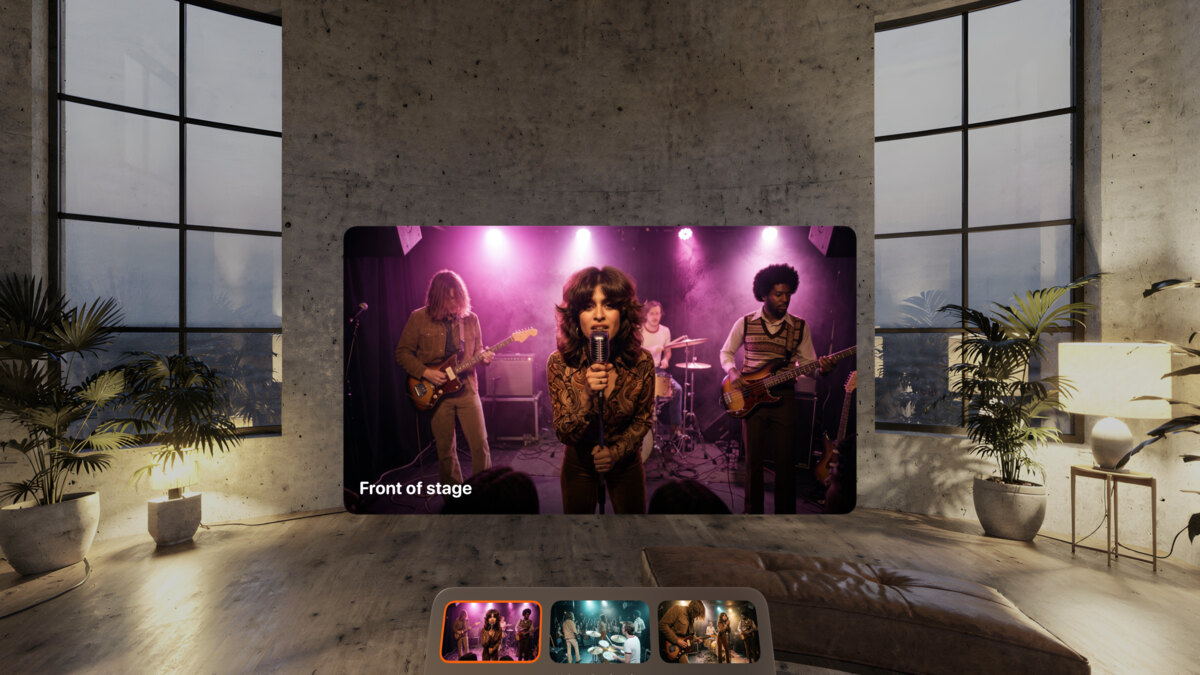
The session home on Apple Vision Pro for the experience Velvet Static, with its videos to pick from.
The “Take your place” panel on Apple Vision Pro, with its “I’m ready” button, in a living room.

Options

Set each session your way.

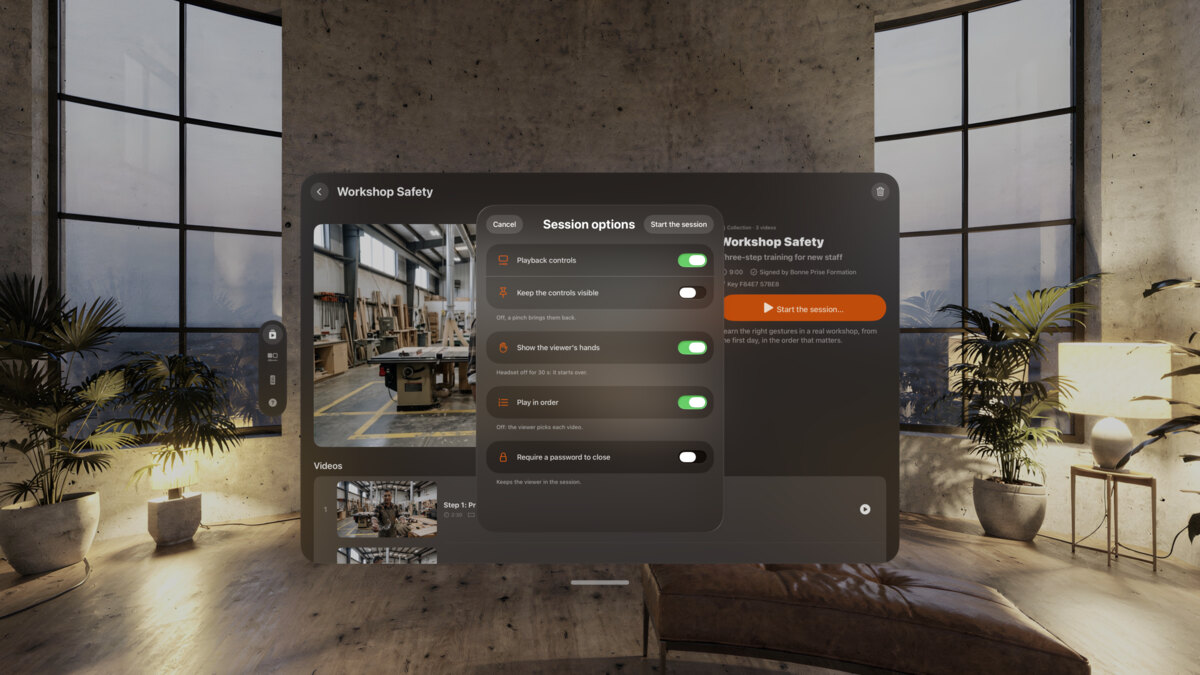
Before each session, choose:

  • Whether the player controls show.
  • Whether the viewer sees their hands.
  • Whether closing the session needs a password.
  • Play in order, or let the viewer choose.
The session options on Apple Vision Pro, over the experience Workshop Safety, with switches for the player controls, the viewer’s hands, the play order and a password to close.

Remote

Run it from your iPhone.

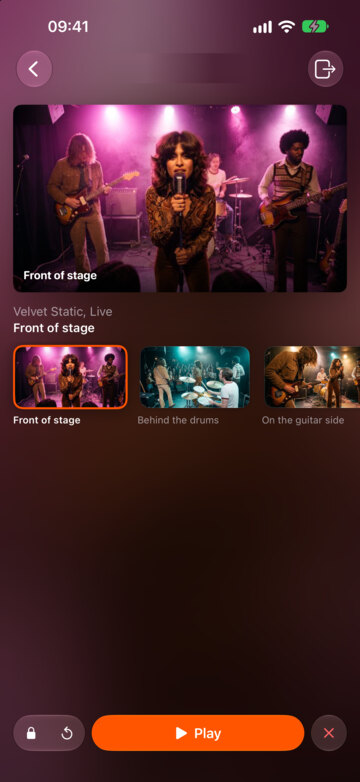
Start and run a session from an iPhone, an iPad or a Mac nearby. Follow where the viewer is. Go back to the start, or launch another experience.

Pair once

  1. Open MV Experience on both devices.

  2. On your iPhone, iPad or Mac, ask to connect to Apple Vision Pro.

  3. On Apple Vision Pro, accept the request.

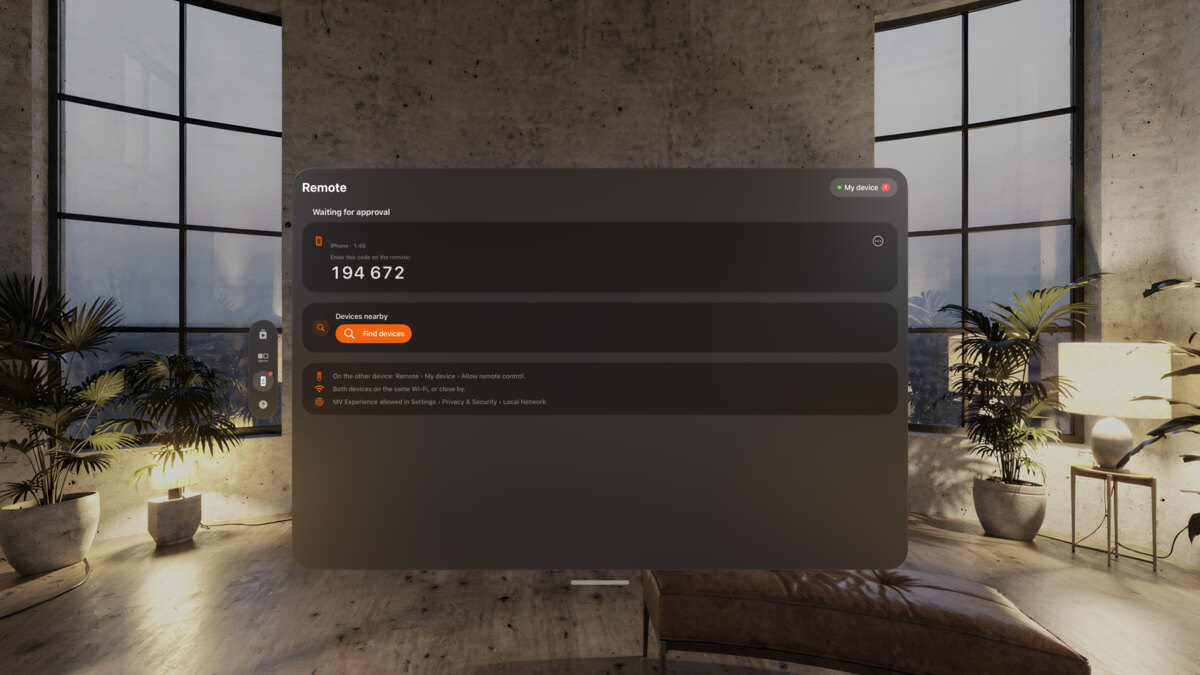
  4. Type the code Apple Vision Pro shows. Done: next time, they find each other.

Works device to device, nearby, with no Wi-Fi network to join. Wi-Fi only needs to be on. Nothing goes through the Internet.

The remote runs on iPhone, iPad and Mac. It runs sessions on Apple Vision Pro, iPad and Mac.

The pairing request with its code on Apple Vision Pro.
The remote on iPhone, following the Velvet Static session: Front of stage is playing.

Studio

Ready in minutes.

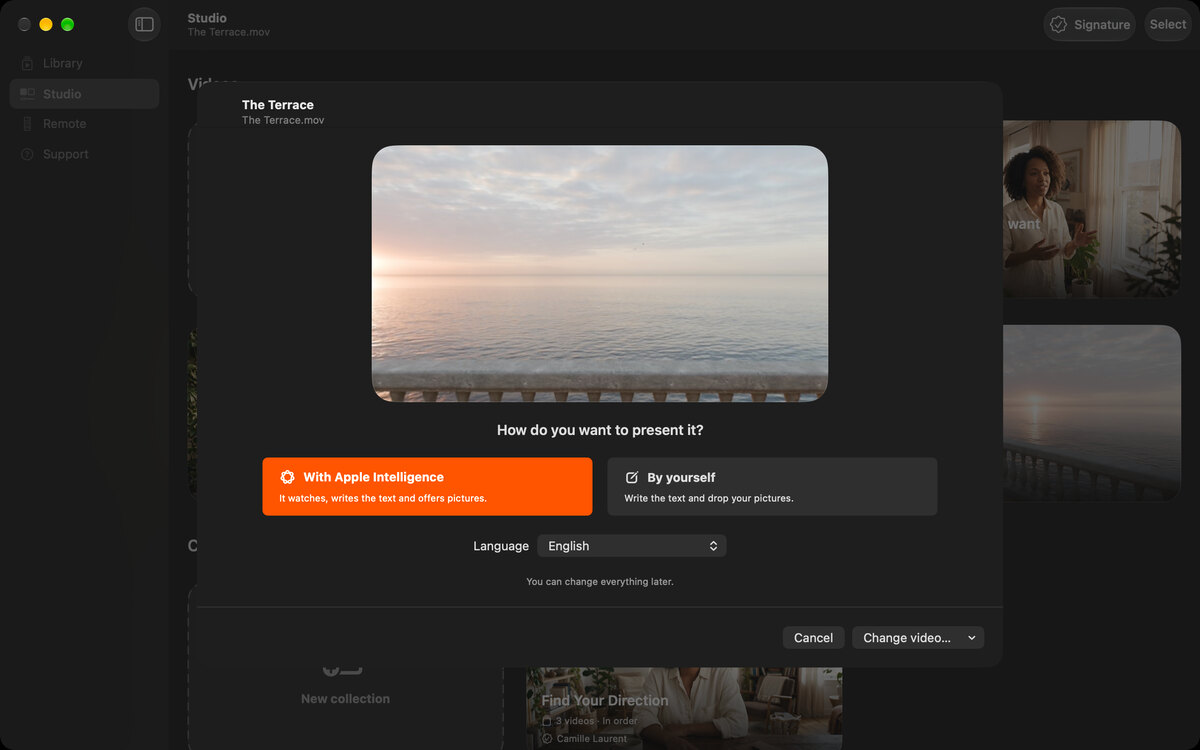
  1. Drop your video into the Studio: Apple Immersive Video, spatial, 180°, 360° or flat.

  2. Choose “With Apple Intelligence”: on your device, it writes the words and makes the pictures. Or choose “Yourself”: drop your own pictures, write your own words.

  3. Change anything you like.

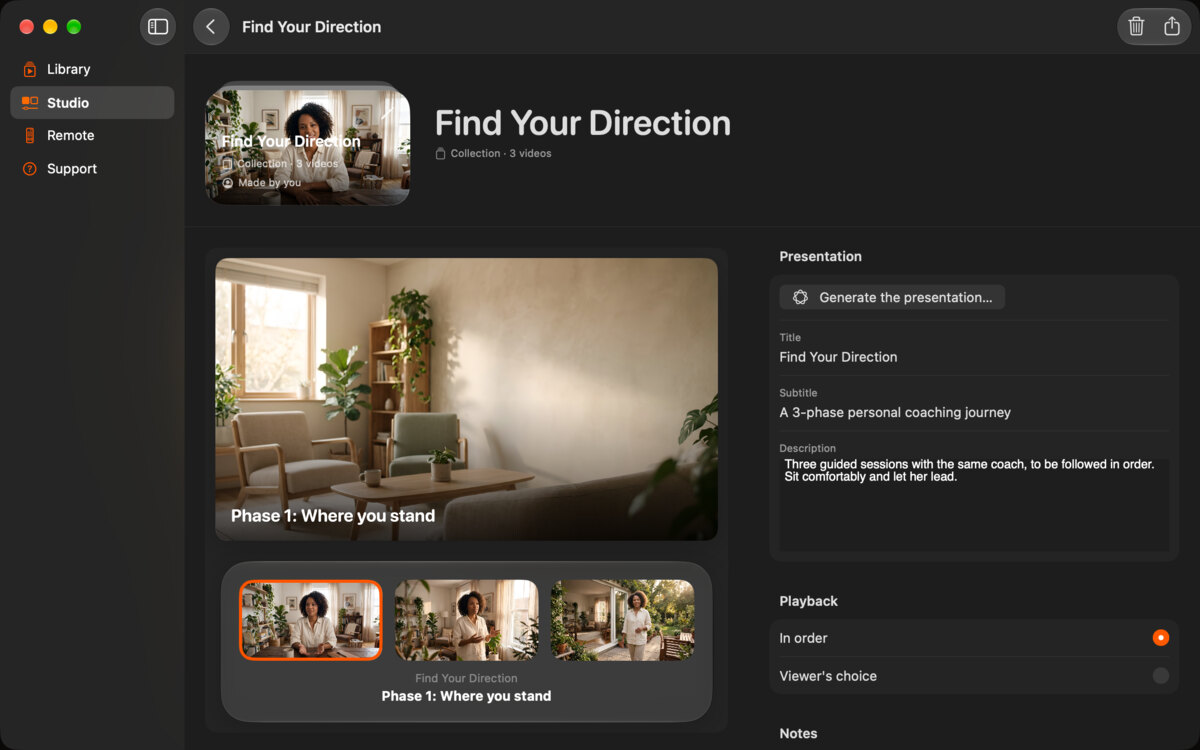
  4. Put several videos together in a collection, played in order or chosen by the viewer.

  5. Each video and each collection becomes one experience, already in your Library.

In our tests on a Mac with M4 Max, the Apple Intelligence step took 41.5 seconds at the median. Time depends on your device and your video.

Apple Intelligence is optional. It needs a compatible device with Apple Intelligence turned on, in a supported language. Without it, every step has a manual path.

The Studio on Mac with a film dropped in, The Terrace, and the two choices: With Apple Intelligence or Yourself.
The collection editor on Mac for the collection Find Your Direction, with its three videos and its playback choices.

Specs

What it plays, and where.

Formats

  • Apple Immersive Video (.aivu)
  • Spatial and 3D video
  • 180° video, MP4 or MOV with its metadata
  • 360° video, MP4 or MOV with its metadata
  • Flat video

On each device

What MV Experience does on each device
What you can doApple Vision ProiPhoneiPadMac
WatchImmersive, around the viewerIn a windowIn a windowIn a window
Make and exportYesYesYesYes
Runs a session a remote can followYesNoYesYes
Be the remoteNoYesYesYes

Requires visionOS, iOS, iPadOS or macOS 27 or later. One universal purchase.

The app speaks English, French, German, Italian, Spanish, Brazilian Portuguese, Japanese, Korean, Simplified Chinese and Arabic.

FAQ

Can the viewer choose the video?

Yes. In a collection, choose “In order” or let the viewer choose. They pick with a finger on Apple Vision Pro.

Can I edit an experience after I make it?

Yes. In the Studio, change any text or picture, then export again.

What does the viewer see without a password?

Anyone with MV Experience can play an experience exported without a password. With a password, the card’s title and pictures stay visible, and the videos need the password.

What happens after the expiration date?

MV Experience stops playing the file. The date is checked against the device’s clock.

Does the remote work over the Internet?

No. It works device to device, nearby. Nothing goes through the Internet.

Do I need Apple Intelligence?

No. It is optional. You can write every text and drop every picture yourself.

Try it with your own film.

Free to download. Your own experiences play their first minute on the free plan.